Search Site

Feed Section

Monday, April 9, 2012

TechSource: How To Use Procrastination To Enhance Online Productivity

TechSource: How To Use Procrastination To Enhance Online Productivity


How To Use Procrastination To Enhance Online Productivity

Posted: 09 Apr 2012 06:26 AM PDT

If you're a productivity freak like me, you might've tried every possible method to solve your procrastination woes. No matter how hard you try, if your work involves researching stuff on the Internet, you tend to put off important things. "Oh, I have that report to submit. I'm kinda bored right now, maybe I'll check Reddit for 5 minutes and then start." You visited reddit.com and after four hours you realized, "Oh sh*t! Where did the time go?"

Been there. Done that.

Procrastination is a problem everyone suffers from; maybe its severity differs from person to person, but there's no denying the fact that everyone procrastinates.

So, if procrastination isn't that bad, why do I end up in such a mess? -Because it is important that you learn some self-control so that you won't be putting things off every so often.

That said, not every kind of procrastination is bad. It's time you learn to use it to your advantage. Today, we've compiled a list of some great techniques that will help you use procrastination to enhance your overall online productivity. Sounds crazy right? Read on.


Step 1: Aggregate

You should stop visiting or browsing your favorite news sites or blogs one by one. I suggest using an RSS feed reader like Google Reader or Feedly to aggregate the contents of your most-visited sites. Personally, I prefer Feedly as it has more features and is much more easy to use. It doesn't matter what you use; it's totally up to you. To get started, add feeds of your favorite news sites or blogs to your RSS reader. Then, set a specific time of the day when you want to get your daily dose of news or blog madness and then bask in the glory of a fully productive day by saving some quality time.


Step 2: Procrastinate

Now that you've aggregated all your stuff, it's time to put procrastination into action. Whenever you come across an article, especially a long one, just pause for a moment and think whether you actually want to spend your time reading it. If the answer is no, skip to the next one. If the answer is yes, then decide whether you can actually spend your time reading it.

If, in case, the article is really long, use a service like Read It Later or Instapaper to read the article for a nice lazy Sunday read. Alternatively, you can use Feedly's built-in 'save for later' feature, which lets you keep a list of all the articles you want to read later. To start using it, simply press the 's' key while on an article.

When it comes to browsing articles on the web, i.e. the links you come across while browsing Reddit, Stumbleupon, and Digg, use the Read It Later bookmarklets to keep a list of everything important. Alternatively, you can use Instapaper, which too provides similar features.


Time-based Procrastination

Whilst procrastinating, you might come across an article that you really want to read but don't currently have the time to. In that case, the best thing to do is use Remember The Milk. For Chrome users, simply go to this page and add the Quickadd bookmarklet to your bookmarks bar. Now, whenever you come across something interesting, simply hit the bookmarklet. This will create a new task with the page's URL. The best thing about this method is that you can set RTM to remind you about the article any time you want.


For Kindle Users

Finally, if you're a Kindle user, there's a service called Klip.me, which, once activated, lets you send web articles to your Kindle or your Android phone with a click of a button. Simply install the service's Chrome extension or bookmarklet and you're good to go. The service also comes with a feature that lets you read your Google Reader feeds on your Kindle even when offline. Cool huh?


Written by: Abhishek, a regular TechSource contributor and a long-time FOSS advocate.


Saturday, April 7, 2012

TechSource: Top 5 Mind Mapping Tools For Android

TechSource: Top 5 Mind Mapping Tools For Android


Top 5 Mind Mapping Tools For Android

Posted: 07 Apr 2012 01:05 AM PDT

Of all the learning methods in the world, mind mapping has been regarded as one of the best and the most efficient ones around. A mind map is basically a diagram that represents various ideas, words, or tasks, and links them together branching out from one single idea. The reason these spider-like diagrams work well is the fact that they facilitate learning in a more visual manner as opposed to the tedious process of going through long texts. Invented and popularized by Tony Buzan, mind mapping can be used for brainstorming ideas, preparing for exams, or breaking down a big project.

Though the easiest way to start mind mapping is using a pen and paper, many people actually prefer taking the help of software. We've already talked about the best mind mapping tools available for Linux, it's time to touch upon the ones that are available for Android. So, without much ado, here are the best mind mapping tools for Android:


Connected Mind

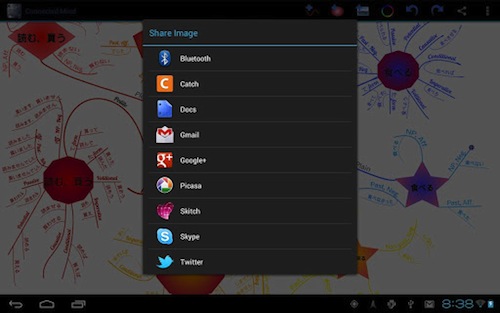
Connected Mind is one of the most feature-laden mind-mapping apps for Android. This cloud connected tool lets you draw detailed mind maps and sync them with your Google cloud account (via Google App engine). Rather than relying on a plain drag-and-drop interface, Connected Mind brings a more intuitive approach to mind mapping. You can draw mind maps with your fingers like you are drawing on a piece of paper. Furthermore, the app comes with support for all versions of Android, including the recently released Ice Cream Sandwich. Once you're done mind mapping, you can share your maps as images on Twitter, Facebook, etc. without leaving the app.


Mind Map Memo

This free app lets you draw mind maps in a neat, intuitive way. You can choose between different node icons, change background color, and even select your favorite node color. Another important feature that this app offers is that it allows users to import and export their maps to and from Freemind. Rated 4 out of 5 stars, Smart Diagram Pro is freely available for download from the Google Play store.


Smart Diagram Pro

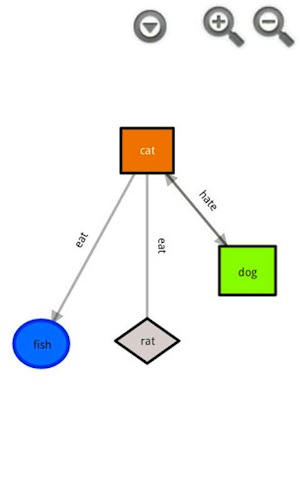
Actually a diagramming tool, Smart Diagram Pro can also be used as a great mind mapping application. Not only can you draw mind maps with it, you can also design flow charts, tree diagrams and more. To get started, the app features a nicely detailed tutorial guiding you through the basics of the application. Then, once you get the hang of it, you can draw as many diagrams as you like. Though the app doesn't provide any cloud-based backup, it does, however, let users export their files in XML and SVG format.


Mindjet

Mindjet, earlier known as Thinking Space Pro, is an app for capturing and organizing information. The tool lets you take notes, brainstorm ideas, and track tasks right from your beloved Android device. Not only can you create detailed mind maps with this application, you can also organize and tag them later on, so that finding them wouldn't be a drag.

Drawing maps is easy; the app supports a variety of keyboard shortcuts and gestures that make the process quite intuitive. You can drag and drop various topics and also add icons and images for context and detail. Furthermore, if you like to work with a little focus, the app also provides a nice full screen mode.

Finally, once you're done with your mind maps, you can sync them with your PC using the Dropbox support that comes with the application. Rated 4.4 out of 5 stars, Mindjet is freely available for download from the marketplace.


MindMeister

MindMeister brings one of the most popular mind mapping applications to your Android device. The free app lets you create mind maps and sync them with your free online account. Also, you can share your maps with your friends or colleagues without leaving the app. Though the app hasn't been received that well by Android users, it still is worthy enough to belong to this list.


Thursday, April 5, 2012

TechSource: 6 Dropbox Tips and Tricks for Linux Users

TechSource: 6 Dropbox Tips and Tricks for Linux Users


6 Dropbox Tips and Tricks for Linux Users

Posted: 04 Apr 2012 06:36 PM PDT

Dropbox, a startup even the mighty Steve Jobs had his eyes on, has risen to fame and popularity in no time. The file-syncing and backup service has over 50 million users, and the number has been rising quite rapidly. The reason Dropbox has been so successful is because it has managed to make syncing dead simple, and that too across all platforms. While most startups in its genre ignore Linux, Dropbox has been catering to the needs of Linux users for a long time.

On Linux, Dropbox works as stable as a native app, and for many -- for me at least -- there has rarely been a time when the application has crashed or misbehaved. If you too are an avid Dropbox user, it's time to make the most of it. So, here at TechSource, we've compiled a list of all the essential tips and tricks you need to know if you're a Linuxian Dropbox user.


Sync Unity Quicklists

Unity, love it or hate it, has become one of the most talked-about interfaces on the Linux platform. And though Canonical's bravest attempt at reaching for the modern desktop has gotten a mixed response, we at TechSource have been using it ever since it came out. One of the best features of Unity is the launcher, which, like the Windows taskbar, supports jumplists or quicklists. This nifty feature allows users to quickly hop to different menus or folders without having to open the program first.

We have already shown you how to add quicklists for Chrome and Firefox. Moreover, there are a lot of articles on the Internet that explain the same process for other applications. The only caveat of this process is that once you format your computer, or if you switch to a new one, you have to do the whole thing -- which is a tad tedious -- all over again. To remedy that problem, it's best if you saved the config files to your Dropbox folders and then synced it across all computers. That way, you won't have to scan through many blogs for instructions after a quick format or a computer upgrade.


Sync Firefox on Dropbox

Though Firefox comes with syncing capabilities built-in, they are a tad tedious to configure and aren't as convenient as moving your profile from one computer to another. One way to deal with this problem is by syncing your Firefox profile using Dropbox. This will save you from a lot of hassles, especially the troubles you get when you lose all your history and bookmarks. A neat guide that will help you sync Firefox with Dropbox can be found HERE.


The perfect tool for distro hoppers

If you frequently switch between different distros, then Dropbox is an indispensable tool for you. The free application can help you backup your important documents, photos, and other files without any problems. Simply 'drop' all your important stuff in the default Dropbox folder and then stop worrying about all your backup woes.


Playlists Sync

If you listen to a lot of music, then it's quite annoying when you have to lose all your playlists simply because of a format. Thankfully, Dropbox rescues you from that predicament by allowing you to backup all your playlists safely. Simply create a folder called Playlists in your Dropbox account and save all your important playlists there.


Wallpaper Collection

Though the default Ubuntu collection of wallpapers is enough to make your Windows-loving friends jealous, we all love to dress up our desktop with something new all the time. Also, there are people who use a fixed set of wallpapers across all their devices. No matter what kind of wallpaper-lover you are, Dropbox helps you backup and sync your wallpaper collection with ease. Simply create a folder titled Wallpapers in your Dropbox account and relax.


Config files

If there are applications you tweak a lot, then it's important that you back up their config files. Config files are the ones that start with dot (.) and can be found in your home directory (usually the '.config' directory to be exact). So, for example you use Gedit text editor a lot, and want to backup all the important settings, simply back the file up on to your Dropbox account and format your computer without any worries.


Written by: Abhishek, a regular TechSource contributor and a long-time FOSS advocate.


[HowtoForge] Newsletter 04/05/2012

HowtoForge Newsletter 04/05/2012
================================

*** Version 1.3 of the ISPConfig 3 Manual ***
=============================================

The next update of the ISPConfig 3 Manual is available in PDF format (version 1.3 for ISPConfig >= 3.0.4; Date: 10/25/2011).

Version 1.3 for ISPConfig >= 3.0.4 (Date: 10/25/2011)
Author: Falko Timme
333 pages

The manual can be downloaded from these two links:

http://www.ispconfig.org/ispconfig-3/ispconfig-3-manual/
http://www.howtoforge.com/download-the-ispconfig-3-manual


*********************************************
*********************************************


ISPConfig Monitor App for Android Phones
========================================

With the ISPConfig Monitor App, you can check your server status and find out if all services are running as expected. You can check TCP and UDP ports and ping your servers. In addition to that you can use this app to request details from servers that have ISPConfig installed; these details include everything you know from the Monitor module in the ISPConfig Control Panel (e.g. services, mail and system logs, mail queue, CPU and memory info, disk usage, quota, OS details, RKHunter log, etc.).

Download/Usage
==============

For download and usage instructions, please visit http://www.ispconfig.org/ispconfig-3/ispconfig-monitor-app-for-android/ .


*********************************************
********************************************


*** HowtoForge Now Has Its own Facebook Page ***
================================================

We at HowtoForge are proud to announce that our new Facebook page is now available under http://www.facebook.com/howtoforge. As most of you probably have a Facebook account, we want to use this additional channel to post updates and get feedback from you. Therefore we would like you to "Like" our page, share it with your friends, post comments, etc. :-)

http://www.facebook.com/howtoforge
********************************************************************


New HOWTOs:
===========

* Server Monitoring With Icinga On Ubuntu 11.10
* Creating An NFS-Like Standalone Storage Server With GlusterFS 3.2.x On Ubuntu 11.10
* High-Availability Storage With GlusterFS 3.2.x On Ubuntu 11.10 - Automatic File Replication Across Two Storage Servers
* Install Horde 4 Webmail For ISPConfig On Debian Squeeze Through PEAR
* How To Integrate ClamAV Into PureFTPd For Virus Scanning On CentOS 6.2
* Installing Nginx With PHP5 (And PHP-FPM) And MySQL Support On CentOS 6.2

++++++++++++++++++++++++++++++++++++++++++++++++++++++++++++

Server Monitoring With Icinga On Ubuntu 11.10
=============================================

Icinga is an enterprise grade open source monitoring system which keeps watch over networks and any conceivable network resource, notifies the user of errors and recoveries and generates performance data for reporting. It is a fork of Nagios. This tutorial explains how to install Icinga on an Ubuntu 11.10 server to monitor this server and another Ubuntu 11.10 server.

You can find the document here:
-------------------------------
http://www.howtoforge.com/server-monitoring-with-icinga-on-ubuntu-11.10


Creating An NFS-Like Standalone Storage Server With GlusterFS 3.2.x On Ubuntu 11.10
===================================================================================

This tutorial shows how to set up a standalone storage server on Ubuntu 11.10. Instead of NFS, I will use GlusterFS here. The client system will be able to access the storage as if it was a local filesystem. GlusterFS is a clustered file-system capable of scaling to several peta-bytes. It aggregates various storage bricks over Infiniband RDMA or TCP/IP interconnect into one large parallel network file system. Storage bricks can be made of any commodity hardware such as x86_64 servers with SATA-II RAID and Infiniband HBA.

You can find the document here:
-------------------------------
http://www.howtoforge.com/creating-an-nfs-like-standalone-storage-server-with-glusterfs-3.2.x-on-ubuntu-11.10


High-Availability Storage With GlusterFS 3.2.x On Ubuntu 11.10 - Automatic File Replication Across Two Storage Servers
======================================================================================================================

This tutorial shows how to set up a high-availability storage with two storage servers (Ubuntu 11.10) that use GlusterFS. Each storage server will be a mirror of the other storage server, and files will be replicated automatically across both storage servers. The client system (Ubuntu 11.10 as well) will be able to access the storage as if it was a local filesystem. GlusterFS is a clustered file-system capable of scaling to several peta-bytes. It aggregates various storage bricks over Infiniband RDMA or TCP/IP interconnect into one large parallel network file system. Storage bricks can be made of any commodity hardware such as x86_64 servers with SATA-II RAID and Infiniband HBA.

You can find the document here:
-------------------------------
http://www.howtoforge.com/high-availability-storage-with-glusterfs-3.2.x-on-ubuntu-11.10-automatic-file-replication-across-two-storage-servers


Install Horde 4 Webmail For ISPConfig On Debian Squeeze Through PEAR
====================================================================

Horde is a groupware suite that offers email, calendar, task, contact management and more things. It also offers SyncML and ActiveSync to synchronize with your cell phones or other software. This tutorial explains how to install Horde 4 for ISPConfig on Debian Squeeze.

You can find the document here:
-------------------------------
http://www.howtoforge.com/install-horde-4-webmail-for-ispconfig-on-debian-squeeze-through-pear


How To Integrate ClamAV Into PureFTPd For Virus Scanning On CentOS 6.2
======================================================================

This tutorial explains how you can integrate ClamAV into PureFTPd for virus scanning on a CentOS 6.2 system. In the end, whenever a file gets uploaded through PureFTPd, ClamAV will check the file and delete it if it is malware.

You can find the document here:
-------------------------------
http://www.howtoforge.com/how-to-integrate-clamav-into-pureftpd-for-virus-scanning-on-centos-6.2


Installing Nginx With PHP5 (And PHP-FPM) And MySQL Support On CentOS 6.2
========================================================================

Nginx (pronounced "engine x") is a free, open-source, high-performance HTTP server. Nginx is known for its stability, rich feature set, simple configuration, and low resource consumption. This tutorial shows how you can install Nginx on a CentOS 6.2 server with PHP5 support (through PHP-FPM) and MySQL support.

You can find the document here:
-------------------------------
http://www.howtoforge.com/installing-nginx-with-php5-and-php-fpm-and-mysql-support-on-centos-6.2


++++++++++++++++++++++++++++++++++++++++++++++++++++++++++++++
++++++++++++++++++++++++++++++++++++++++++++++++++++++++++++++

You can now support HowtoForge by becoming a subscriber:

HowtoForge Subscription
=======================

*** New! We now accept RBS WorldPay payments in addition to PayPal. ***

For a monthly fee of 5 EUR or 25 EUR for half a year, you can become a HowtoForge supporter and help us cover our costs (servers, bandwidth, etc.) and support ISPConfig development. In return, you receive the following benefits:

1. Download the ISPConfig 3 Manual (from http://www.howtoforge.com/download-the-ispconfig-3-manual).
2. Access the whole HowtoForge web site without any ads.
3. Download the results of our tutorials as VMware images (where available) (a list of downloadable VMware images is available here: http://www.howtoforge.com/list-of-downloadable-vmware-images).
4. Download our tutorials as PDF files.
5. View our tutorials as printer-friendly pages.
6. You will be marked as a "HowtoForge Supporter" in your forum posts.
7. Plus, you support the ISPConfig development.

If you have the free VMware Server or Player installed, you can import our VMware images and start playing around with the results of our tutorials immediately. It's a great way to track down problems with your own setup or simply to save time. ;-)

More details can be found on http://www.howtoforge.com/subscription.

++++++++++++++++++++++++++++++++++++++++++++++++++++++++++++++
++++++++++++++++++++++++++++++++++++++++++++++++++++++++++++++

Best Regards,

Your HowtoForge Team
Email: info@howtoforge.com
URL: http://www.howtoforge.com

To unsubscribe or update your records, click here: http://newsletter.howtoforge.com/howtoforge/user/update.php?email=matrixunix.ubuntu@blogger.com&code=d8531959c7da2982ec3a7f8f82a13961

Monday, April 2, 2012

TechSource: Best Android Apps for Programmers

TechSource: Best Android Apps for Programmers


Best Android Apps for Programmers

Posted: 02 Apr 2012 07:50 AM PDT

If you're a programmer, then we all know that the laptop or the desktop PC is your only workplace. However, as we enter the world of smartphones, tablet computers, and smart TVs, everything is going portable, and so is the process of programming. Programming is something that requires a lot of practice, and missing out on it even for a couple of weeks can set you back a bit. The best way to avoid this problem is to make sure you get your daily dose of coding, no matter what.

Here at TechSource we've already discussed a lot about programming and today, we're here to let you know of a bunch of great apps that would make your coding process a little more mobile. Whether you're traveling or too tired to slouch over your huge laptop, you can take your coding experience anywhere you want.

Thanks to some great Android applications, your programming skills won't suffer just because you can't spend enough time on your computer. So, without further ado, here are some of the best Android apps for programmers:


C Programming Quiz

If you're learning C programming or just been looking to hone your coding skills, this little app lets you test your knowledge of C concepts in a fun, interesting way. C Programming Quiz, as the name suggests, presents users with a neat quiz based on C programming concepts, thus letting you master what is important for your programming skills.


HC-16C Programmer's Calculator

A high-end emulation of the famous HP-16C RPN Programmer's Calculator, this next app lets you do math, display numbers in decimal, hexadecimal, and do much more without hiring a mathematician monkey. Though not a programming tool per se, HC-16C is a great companion for alleviating most of your coding woes.


Programmer Keyboard

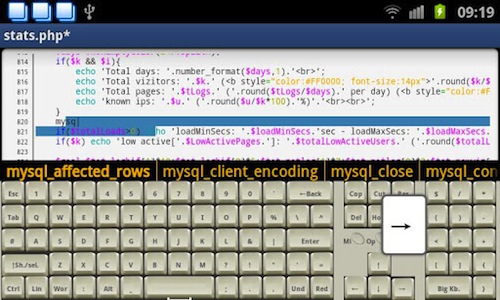
If programming on your Droid is your latest hobby, then the default keyboard, which is more suited for relaying LOLs and snarky smileys, might not be the most comfortable coding tool. Enter Programmer Keyboard, a free app that brings a full-fledged QWERTY keyboard along with code completion. The app, besides from offering a full QWERTY layout, also includes the Ctrl, Alt, and Arrow keys that proficient coders miss out on these mobile devices. Though in beta, the app is quite stable and doesn't suffer from any major bugs.


DroidEdit

Though a good coder will make do with a relatively stale slice of pizza, he or she would never settle on just an 'average' text editor. Catering to that ideology comes DroidEdit, a free code editor for Android that lets you write your code along with complete syntax highlighting. Apart from highlighting codes for Ruby, Java, C, C++, and almost all major programming languages, DroidEdit also comes with several color themes and character encoding support. Though the free version suffices the needs of most programmers, the pro version does offer some interesting features like Dropbox support and the ability to run external commands via SSH.


C4droid

C4droid is a C Compiler for Android. If you write a lot of C or C++ apps on your Droid, this app will save you from the trouble of loading those source files onto your computer and then compiling them. Though not free, this app is pretty useful for practicing coding on the go.


Hacker's Keyboard

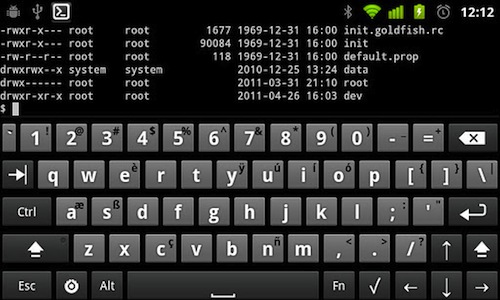
Much like the aforementioned programmer's keyboard, this app brings a full-fledged computer-like typing experience to your Android. More useful for tablets, Hacker's Keyboard comes with a complete QWERTY keyboard along with Alt, Ctrl, and even function keys.


Ruby Programming Language

Whether you're an experienced Ruby coder or simply a beginner, this DRM-free book will help you learn more about the amazing programming language in great detail. Written by David Flanagan and Yukihiro Matsumoto (creator of Ruby), this top-rated title will walk you through Ruby from the rudimentary basics to the essential details.