Search Site

Feed Section

Monday, March 18, 2013

TechSource: Top Video-Sharing Apps For Android

TechSource: Top Video-Sharing Apps For Android


Top Video-Sharing Apps For Android

Posted: 18 Mar 2013 01:22 AM PDT

With the slightly controversial Vine, video sharing went mainstream. A Twitter product, the iOS-only app allowed users to share small videos to other users and public as well. As good as the product was, it was not available to Android users. 

Many Androiders have been looking for some decent video-sharing apps for the platform, and have been slightly disappointed in the past. Thankfully though, recently, there have been some new apps in the Google Play Store that let you share videos with your friends and even with the public as well.


Klip

With a clean interface, Klip is a free application that allows you to shoot video clips and store them online. Once you shoot the video, it gets added to your Klip library. From there, you can preview the video and share it with your friends. One of the best features of this app is that it allows you to upload unlimited amount of videos to your online Klip account. You can either use the front or back camera to shoot your video and then upload it online.

When it comes to the social aspect of the application, Klip lets you search and discover videos uploaded by other users too. You can view them, comment on them, and like them. One of the coolest features I really like was the one that allows you to post big smileys along with your comment. Despite being social, Klip also focuses on privacy. You can set Klip to block viewers from viewing and commenting on your videos and profile. 


Mobli

Mobli is a free application that capture your favorite moments through videos and photos, and share them to the world. With a strong focus on the social aspect, Mobli not only lets you share videos, but also allows you to connect with other people who are using the social network. You can browse and comment on other people's shared videos and photos and also view what's trending around the world. The application also provides filters so that you can browse specific videos and photos without having to go through a bunch of unwanted ones. 


Live Video Share (Flixwagon)

This free application lets you broadcast live video to your friends and interact with them via social networks. Unlike other video-sharing apps where you shoot the video, save it, and then share it with your friends, Flixwagon lets you share the video in real-time. This gives you the experience of broadcasting a particular event live via television. Furthermore, the application also provides geo-location features so that you can browse other interesting places and mark your recorded events on a map. 


Qik Video

Qik lets you do video chats, video mail, and video sharing for free. Once installed, you'll be able to stream live videos via Facebook, Twitter, and more. You can also make live video calls with any of your mobile contacts. If they are unreachable via Qik, you can also send them an SMS. Coming to the video-sharing part, videos are instantly uploaded to the cloud. The cloud storage space however is limited to 25 videos. If you want more storage, then uploading to a premium account gives you unlimited space and storage.  


Magisto

Magisto is much like Instagram for videos. Once you shoot a video, Magisto turns it into an edited movie and lets you share it with your friends for free. All you have to do is shoot the video from your Android phone, upload it to Magisto, and choose a soundtrack for the movie. One of the best features of this app is that it automatically edits the video for you. That is, it analyzes the footage, splices it, applies the necessary filters and gives it back to you. You can then share this video with your friends and your family. 


Written by: Abhishek, a regular TechSource contributor and a long-time FOSS advocate.

Saturday, March 16, 2013

TechSource: How to Annotate PDF Documents in Ubuntu Linux

TechSource: How to Annotate PDF Documents in Ubuntu Linux


How to Annotate PDF Documents in Ubuntu Linux

Posted: 15 Mar 2013 11:19 PM PDT

We all love taking notes and highlighting important parts while reading a book. Modern e-book readers like Kindle and Nook also incorporate the same functionality into their devices. They let us highlight and annotate our e-books so that we can revisit anything that we felt was important in the book.

If you don't own a Nook or a Kindle but prefer reading documents and e-books in PDF format on your Ubuntu desktop, annotating them isn't as straightforward as it is on those devices. Most PDF readers in Linux do not support annotations right away. However, by installing some tools, you can start instantly annotating and highlighting your PDF documents. Here are a couple of ways to configure Ubuntu to let you highlight documents using Evince and Okular.


Annotating With Document Viewer

Ubuntu comes with its default document reader called Evince. Though a straightforward and simple application, Evince can easily be configured so that it can let you annotate your documents. And, even though the annotations are not as good as you'd expect them to be, it is a feature that does what it says, it lets you highlight specific parts of a document and add notes to them.

To install annotations in Evince, you'll need to add a couple of libraries to your Ubuntu installation. To do that, open your terminal (Ctrl + Alt + T) and type in or paste the following commands:

sudo apt-get install poppler-data poppler-utils

Once you've done that, open Evince by searching for the term "Document Viewer" from the launcher.

From Evince, open any PDF document you want by pressing Ctrl+O. Then, find the Index/Thumbnails panel on the left-hand side. If you don't see the side pane, press F9 to show it.

Then click on the pane, and you'll find a drop-down menu letting you select between Thumbnails, Bookmarks, Index, and Annotations. 


Select Annotations from the menu and you'll find a pane with two tabs: Add and List. Switch to the "Add" tab. Now, whenever you want to annotate parts of a document, click on the pencil icon you'll see in the Annotations pane. Doing this will pop up a yellow post-it where you can write notes and remarks. Once you're done annotating, don't forget to save the document by pressing Ctrl+S.


Now, whenever you want to review your Annotations, you can do so by switching to the "List" tab.

Unfortunately, Evince doesn't allow highlighting or any other markings. If you want to do that, you will need to install Okular.


Annotating With Okular

Okular is a KDE-based document-reading application that comes with amazing highlighting and bookmarking features. It has a solid set of features that make it a perfect document reader whether you're a KDE user or not.

To install Okular type in or paste the following commands in your terminal:

sudo apt-get install okular

Open Okular by searching for it from the Launcher. Then, open a PDF document of your choice. To start annotating, press F6 or, from the menu bar, select Tools -> Review.

A thin side pane will pop up letting you highlight the document, write notes, and draw freehand lines too. Use the buttons 1 through 6 to select any of the tools. You can access your annotations any time in the future by using the "Review" pane in the sidebar.


Written by: Abhishek, a regular TechSource contributor and a long-time FOSS advocate.

Thursday, March 14, 2013

TechSource: Samsung Galaxy S4 Rumors, Hype, and Expectations

TechSource: Samsung Galaxy S4 Rumors, Hype, and Expectations


Samsung Galaxy S4 Rumors, Hype, and Expectations

Posted: 13 Mar 2013 08:25 PM PDT

Samsung's flagship device, the Galaxy S4 will finally be unveiled several hours from now. Successor to the insanely popular Galaxy S3 device, this new offering from the Korean giant is all set to wow the Android fanbase. Speculations, rumors, and even "confirmed" features are all that you see on tech news sites. After all, this is the best smartphone in the world and it has to live up to the expectations.

Samsung, on the other hand, has taken all efforts to ensure that there is enough hype created before the release. They have launched a couple of ads that help in building up the excitement towards the big event. Furthermore, banners, ads, and giant hoardings are all indicating that Samsung is bringing something big for its fans.

As big as the hype seems, passionate Android users are satisfied only with the best. So, needless to say, we have our own expectations from of this upcoming Android super smartphone. We want the device to be a blend of all the things we have on our "secret smartphone wishlist" that we keep tucked right under our beds. Rumors are that the last Samsung device was also a result of our idea to send our secret smartphone wish list to the Korean giant (this will be our little secret shhhh..). Anyways, before you start wondering whether we expect Samsung to make intergalactic phone calls, it is time to unveil what we really expect from our beloved Samsung. 

My favorite rendered image of the Galaxy S4


Performance and Processor:

Duh! If it's a new device, it will have a new processor. No, seriously. We want the fastest in the market. The breeziest one that can do ten things at once. Okay, let's slow down. What we really expect from Samsung is a processor that hasn't been used in any other device and is the fastest one around. What the rumor mills are saying is that the Galaxy S4 will feature the new Exynos 5 Octa mobile processor that Samsung tweeted out recently.

Many rumors are pointing towards this processor being included in the final version. The chip has eight cores and is based on AMD's big.LITTLE architecture. One of the smartest things you'll find in this chip is that some cores will automatically shut down whenever they are not in use thus conserving the battery life. As far as the RAM is concerned, 2GB or more would be great.


Looks / Design:

We expect Samsung to deliver a slimmer smartphone than the previous Galaxies; however, it shouldn't be any bigger than the Galaxy S3. With the recent trend of "Grand" phones taking over, the Galaxy S4 should shy away from making an almost phablet-looking phone. Instead, it should be a phone that fits nicely into our palms and lets us reach all corners of our device using simply one hand. As to how the device will finally look like, no one knows; however, pictures of the device were allegedly leaked on a Chinese forum pointing towards a much slimmer device that looks almost the same as the Galaxy S3.

Now many tech experts are saying that the reports are fake and that the phone in the pictures is nothing but Samsung Galaxy S3. We'll have to wait and see as to how the device actually looks like when it comes out.


Display:

It is rumored that Samsung will launch a full-HD 5-inch display for its new device. One rumor from Sammobile suggests that the Galaxy S4 will feature a floating-touch display. This new feature will let you use your finger as a cursor so that you can hover over a photo album to get a preview of what is inside it. Another rumor about the display is that the S4 will use a new AMOLED material known as green PHOLED that will make the standard AMOLED display 25% more efficient. What we want is a display that tops the Apple's retina display yet saves an insane amount of battery life.


Camera:

Rumors suggest that the Samsung Galaxy S4 will have a 13-Megapixel camera with new Samsung Orb technology that lets you capture 360-degree photos like Photosphere. What we expect from Samsung is a camera that is quick and lets you capture multiple snaps without any lag. Also, full HD recording and other standard features would be good to have. Another feature we might see is a better front-facing camera from Samsung.


Price:

Let's hope Samsung doesn't bring something that burns a hole into our pockets. With the launch of Nexus 4, many people are expecting Samsung to lower the prices of its devices. But again, Samsung is known to be on the expensive side so, you never know.


OS / User Interface:

One thing that SHOULD be there is Android Jelly Bean updated to the very latest version. What we also need is a newer version of the TouchWiz UI. If you compare the vanilla Jelly Bean UI to the TouchWiz UI of say Galaxy S3, you'll be disappointed at what Samsung has done. Many rumors are also suggesting that the Galaxy S4 will have an updated version of the TouchWiz UI. Let's keep our fingers crossed for this one.


Conclusion:

We are all excited about the Samsung event in New York. With its soaring popularity, Samsung is raising the bar of smartphones each year. It looks like Samsung is becoming the new Apple in the eyes of consumers. Let's hope the Galaxy S4 will not disappoint.

[HowtoForge] Newsletter 03/14/2013

HowtoForge Newsletter 03/14/2013
================================

*** Version 1.4 of the ISPConfig 3 Manual ***
=============================================

The next update of the ISPConfig 3 Manual is available in PDF format (version 1.4 for ISPConfig >= 3.0.5; Date: 02/22/2013).

Version 1.4 for ISPConfig >= 3.0.5 (Date: 02/22/2013)
Author: Falko Timme
373 pages

The manual can be downloaded from these two links:

http://www.ispconfig.org/ispconfig-3/ispconfig-3-manual/
http://www.howtoforge.com/download-the-ispconfig-3-manual


*********************************************
*********************************************


ISPConfig Monitor App for Android Phones
========================================

With the ISPConfig Monitor App, you can check your server status and find out if all services are running as expected. You can check TCP and UDP ports and ping your servers. In addition to that you can use this app to request details from servers that have ISPConfig installed; these details include everything you know from the Monitor module in the ISPConfig Control Panel (e.g. services, mail and system logs, mail queue, CPU and memory info, disk usage, quota, OS details, RKHunter log, etc.).

Download/Usage
==============

For download and usage instructions, please visit http://www.ispconfig.org/ispconfig-3/ispconfig-monitor-app-for-android/ .


*********************************************
********************************************


*** HowtoForge Now Has Its own Facebook Page ***
================================================

We at HowtoForge are proud to announce that our new Facebook page is now available under http://www.facebook.com/howtoforge. As most of you probably have a Facebook account, we want to use this additional channel to post updates and get feedback from you. Therefore we would like you to "Like" our page, share it with your friends, post comments, etc.

http://www.facebook.com/howtoforge
********************************************************************


New HOWTOs:
===========

* How To Use Multiple PHP Versions (PHP-FPM & FastCGI) With ISPConfig 3 (Ubuntu 12.04 LTS)
* How To Use Multiple PHP Versions (PHP-FPM & FastCGI) With ISPConfig 3 (CentOS 6.3)
* Serving CGI Scripts With Nginx On Fedora 18
* Using mod_spdy With Apache2 On CentOS 6.3
* Set Up Squid Siblings On CentOS 6.3 With WCCP
* Installing Lighttpd With PHP5 (PHP-FPM) And MySQL Support On Scientific Linux 6.3

++++++++++++++++++++++++++++++++++++++++++++++++++++++++++++

How To Use Multiple PHP Versions (PHP-FPM & FastCGI) With ISPConfig 3 (Ubuntu 12.04 LTS)
========================================================================================

Since ISPConfig 3.0.5, it is possible to use multiple PHP versions on one server and select the optimal PHP version for a website. This feature works with PHP-FPM (starting with PHP 5.3) and FastCGI (all PHP 5.x versions). This tutorial shows how to build PHP 5.3 and PHP 5.4 as a PHP-FPM and a FastCGI version on an Ubuntu 12.04 server. These PHP versions can be used together with the default PHP (installed through apt) in ISPConfig.

You can find the document here:
-------------------------------
http://www.howtoforge.com/how-to-use-multiple-php-versions-php-fpm-and-fastcgi-with-ispconfig-3-ubuntu-12.04-lts


How To Use Multiple PHP Versions (PHP-FPM & FastCGI) With ISPConfig 3 (CentOS 6.3)
==================================================================================

Since ISPConfig 3.0.5, it is possible to use multiple PHP versions on one server and select the optimal PHP version for a website. This feature works with PHP-FPM (starting with PHP 5.3) and FastCGI (all PHP 5.x versions). This tutorial shows how to build PHP 5.3 and PHP 5.4 as a PHP-FPM and a FastCGI version on a CentOS 6.3 server. These PHP versions can be used together with the default PHP (installed through yum) in ISPConfig.

You can find the document here:
-------------------------------
http://www.howtoforge.com/how-to-use-multiple-php-versions-php-fpm-and-fastcgi-with-ispconfig-3-centos-6.3


Serving CGI Scripts With Nginx On Fedora 18
===========================================

This tutorial shows how you can serve CGI scripts (Perl scripts) with nginx on Fedora 18. While nginx itself does not serve CGI, there are several ways to work around this. I will outline two solutions: the first is to proxy requests for CGI scripts to Thttpd, a small web server that has CGI support, while the second solution uses a CGI wrapper to serve CGI scripts.

You can find the document here:
-------------------------------
http://www.howtoforge.com/serving-cgi-scripts-with-nginx-on-fedora-18


Using mod_spdy With Apache2 On CentOS 6.3
=========================================

SPDY (pronounced "SPeeDY") is a new networking protocol whose goal is to speed up the web. It is Google's alternative to the HTTP protocol and a candidate for HTTP/2.0. SPDY augments HTTP with several speed-related features such as stream multiplexing and header compression. To use SPDY, you need a web server and a browser (like Google Chrome and upcoming versions of Firefox) that both support SPDY. mod_spdy is an open-source Apache module that adds support for the SPDY protocol to the Apache HTTPD server. This tutorial explains how to use mod_spdy with Apache2 on CentOS 6.3.

You can find the document here:
-------------------------------
http://www.howtoforge.com/using-mod_spdy-with-apache2-on-centos-6.3


Set Up Squid Siblings On CentOS 6.3 With WCCP
=============================================

This tutorial will walk you through setting up a couple of outbound Squid proxy sibling servers running on CentOS 6.3 and have them connected to your gateway using WCCP. This will not cover the tuning of Squid in terms of cache performance.

You can find the document here:
-------------------------------
http://www.howtoforge.com/set-up-squid-siblings-on-centos-6.3-with-wccp


Installing Lighttpd With PHP5 (PHP-FPM) And MySQL Support On Scientific Linux 6.3
=================================================================================

Lighttpd is a secure, fast, standards-compliant web server designed for speed-critical environments. This tutorial shows how you can install Lighttpd on a Scientific Linux 6.3 server with PHP5 support (through PHP-FPM) and MySQL support. PHP-FPM (FastCGI Process Manager) is an alternative PHP FastCGI implementation with some additional features useful for sites of any size, especially busier sites. I use PHP-FPM in this tutorial instead of Lighttpd's spawn-fcgi.

You can find the document here:
-------------------------------
http://www.howtoforge.com/installing-lighttpd-with-php5-php-fpm-and-mysql-support-on-scientific-linux-6.3


++++++++++++++++++++++++++++++++++++++++++++++++++++++++++++++
++++++++++++++++++++++++++++++++++++++++++++++++++++++++++++++

You can now support HowtoForge by becoming a subscriber:

HowtoForge Subscription
=======================

*** New! We now accept RBS WorldPay payments in addition to PayPal. ***

For a monthly fee of 5 EUR or 25 EUR for half a year, you can become a HowtoForge supporter and help us cover our costs (servers, bandwidth, etc.) and support ISPConfig development. In return, you receive the following benefits:

1. Download the ISPConfig 3 Manual (from http://www.howtoforge.com/download-the-ispconfig-3-manual).
2. Access the whole HowtoForge web site without any ads.
3. Download the results of our tutorials as VMware images (where available) (a list of downloadable VMware images is available here: http://www.howtoforge.com/list-of-downloadable-vmware-images).
4. Download our tutorials as PDF files.
5. View our tutorials as printer-friendly pages.
6. You will be marked as a "HowtoForge Supporter" in your forum posts.
7. Plus, you support the ISPConfig development.

If you have the free VMware Server or Player installed, you can import our VMware images and start playing around with the results of our tutorials immediately. It's a great way to track down problems with your own setup or simply to save time. ;-)

More details can be found on http://www.howtoforge.com/subscription.

++++++++++++++++++++++++++++++++++++++++++++++++++++++++++++++
++++++++++++++++++++++++++++++++++++++++++++++++++++++++++++++

Best Regards,

Your HowtoForge Team
Email: info@howtoforge.com
URL: http://www.howtoforge.com

To unsubscribe or update your records, click here: http://newsletter.howtoforge.com/howtoforge/user/update.php?email=matrixunix.ubuntu@blogger.com&code=d8531959c7da2982ec3a7f8f82a13961

Wednesday, March 13, 2013

TechSource: 5 Best Android Apps For Wrestling Fans

TechSource: 5 Best Android Apps For Wrestling Fans


5 Best Android Apps For Wrestling Fans

Posted: 13 Mar 2013 06:44 AM PDT

If you grew up worshipping Hulk Hogan, Triple H, and The Rock, you're not the only one. Wrestling be it professional wrestling (like the ones we see in Olympics) or WWE (which is purely for entertainment) is something that is watched and loved by many people around the world. Fans like to see their favorite athlete compete against each other in this magnificent display of human strength and stamina. Though you won't get to see wrestling matches and games everyday, there are news channels and apps that help us catch up with our favorite games no matter where we are.

If you too, like me, love this sport to death, here are some great Android apps that will help you catch up with the latest in the wrestling world and even brag to your friends about your wrestling mania.


Pro Wrestling Torch

Pro Wrestling Torch is a free application that helps you keep up with the latest in the wrestling world. Regarded as one of the leading sources in journalism when it comes to wrestling, this application gives you the latest wrestling breaking news, headlines, game reviews and much more. The app gives you up-to-date coverage of news from WWE, TNA, Dragon Gate USA, Ring of Honor Wrestling, and Chikara Pro. The app also provides the latest in-depth analysis, exclusive interviews, and podcasts so that you'll always get the latest from the wrestling world. 


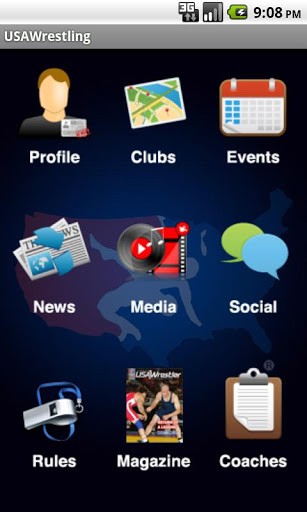
USA Wrestling

If you're a fan of professional wrestling then you'll love this app. You can log in to your USA wrestling profile, update your status and, of course, peruse the USA wrestling magazine. The app also provides the latest news from the wrestling world along with a listing of the upcoming events. 


WWE Official Application

This is a must-have application for any wrestling fanboy or fangirl. Rated 4.6 out of 5 stars in the Google Play Store, WWE's official application gives you everything you need to get the best wrestling experience. Once installed, you'll be able to view profiles of your favorite stars, their career profiles, and their Facebook and Twitter status updates. Furthermore, you can also catch up with any matches you missed last night be it Wrestlemania or Smackdown. One of the best features of this app is that it lets you access thousands of clips from the WWE universe and lets you view them on your Apple TV using AirPlay. Overall, this is an essential app for every pro-wrestling fan.


ProWrestling.Net: Latest News!

This free application brings the latest and the best from the Pro wrestling world. With updates from TNA, WWE, and ROH, the app brings wrestling news, reviews, analysis, and more. The news stories are collected from all around the web and can be shared with your friends with a click. Furthermore, you also get access to pro-wrestling board forums so that you can interact and connect with other pro wrestling fans. 


WWE Wrestler Theme Song Trivia

All of us love the intros of our favorite wrestling stars. Be it the mysterious opening Undertaker has or the ever so familiar opening of The Rock, wrestling theme songs have been cherished by fans for over the years. But, can you guess which song belongs to which wrestler just by listening to it?

Wrestler theme song trivia is a free application that plays as many as 146 theme songs of your favorite wrestlers so that you can guess which song belongs to which wrestler. The app has three different difficulty levels so that by just playing with the app for a couple of hours, you'll get good at guessing most of the popular intros. The way the trivia works is that it plays you the theme music of your favorite star along with a picture and 4 options. You have to choose the one that goes with the tune and then progress to the next question. Overall, this is a fun and entertaining app for any wrestling fan.


Written by: Abhishek, a regular TechSource contributor and a long-time FOSS advocate.

Monday, March 11, 2013

TechSource: How to Take Screenshots on Linux Using the Command Line

TechSource: How to Take Screenshots on Linux Using the Command Line


How to Take Screenshots on Linux Using the Command Line

Posted: 10 Mar 2013 08:01 PM PDT

A screenshot is an image taken by the computer user to record the visible items displayed on the monitor, television, or any other visual output device. In the Linux world, screenshots are very useful if you want to get proper support for your problems. Usually, many people that post bugs or errors they encountered while using Linux are asked to submit screenshots of their desktop.  In other cases, screenshots are used by many users to show off their customized desktops. Hashtags like #showyourdesktopfriday are rather quite popular amongst Google Plus users. And mind you, most of the posts in this category include screenshots of Linux desktops.

Many users take screenshots on Linux using the Print Screen button. Simply pressing the Print Screen button makes a camera-like clicking noise on your desktop and the computer asks you where to save the image. If, however, you are a command line junkie and spend most of your time perusing lines and lines of code, you won't like this GUI-esque method of taking screenshots. For you, nothing but a simple command to do that would suffice. For these fastidious command-line addicts, fortunately, there are a few solutions that let them take pictures of their desktop without leaving the ever-familiar terminal. So, if you're one of those users waiting to show of their desktop whilst impatiently staring at a blinking cursor, here are some tips on how to take screenshots on Linux using the command line.

When you take a screenshot using the print screen button, you are using the Gnome screenshot tool. Instead of calling it using the print screen button, you can also ask it to take a screenshot using the command line. To do that, simply open your terminal and type in the following command:

gnome-screenshot


This will simply take a screenshot of the whole desktop and ask you where to save it. 


Taking screenshot of a particular region on the screen:

If you want to take screenshot of a particular area, type in the following command:

gnome-screenshot -a

This will turn your mouse pointer into crosshairs thus allowing you to select any area you want as a screenshot.


Taking screenshot of the command line itself:

If you want to take screenshot of the command line window itself, you can do that by typing in the following command:

gnome-screenshot -w

Also, if you want to take a screenshot without the window border, you can type in the following command:

gnome-screenshot -w -B


Adding effects to your screenshot:

If you want to add a border or a shadow to your screenshots, you can do that by typing in the following command:

gnome-screenshot -w -e shadow

Or, you can add a border to your screen grabs using the following command:

gnome-screenshot -w -e border


Taking screenshots with delays:

You can also add a delay to the screenshots so that you can access a particular menu or a window that normally won't be shown if you take the screenshot instantly.

gnome-screenshot -d 5

The aforementioned command will add a delay of 5 seconds before the screenshot.


Written by: Abhishek, a regular TechSource contributor and a long-time FOSS advocate.