HowtoForge Newsletter 12/13/2012
================================
*** Version 1.3 of the ISPConfig 3 Manual ***
=============================================
The next update of the ISPConfig 3 Manual is available in PDF format (version 1.3 for ISPConfig >= 3.0.4; Date: 10/25/2011).
Version 1.3 for ISPConfig >= 3.0.4 (Date: 10/25/2011)
Author: Falko Timme
333 pages
The manual can be downloaded from these two links:
http://www.ispconfig.org/ispconfig-3/ispconfig-3-manual/
http://www.howtoforge.com/download-the-ispconfig-3-manual
*********************************************
*********************************************
ISPConfig Monitor App for Android Phones
========================================
With the ISPConfig Monitor App, you can check your server status and find out if all services are running as expected. You can check TCP and UDP ports and ping your servers. In addition to that you can use this app to request details from servers that have ISPConfig installed; these details include everything you know from the Monitor module in the ISPConfig Control Panel (e.g. services, mail and system logs, mail queue, CPU and memory info, disk usage, quota, OS details, RKHunter log, etc.).
Download/Usage
==============
For download and usage instructions, please visit http://www.ispconfig.org/ispconfig-3/ispconfig-monitor-app-for-android/ .
*********************************************
********************************************
*** HowtoForge Now Has Its own Facebook Page ***
================================================
We at HowtoForge are proud to announce that our new Facebook page is now available under http://www.facebook.com/howtoforge. As most of you probably have a Facebook account, we want to use this additional channel to post updates and get feedback from you. Therefore we would like you to "Like" our page, share it with your friends, post comments, etc.
http://www.facebook.com/howtoforge
********************************************************************
New HOWTOs:
===========
* Installing KVM Guests With virt-install On Ubuntu 12.10 Server
* How To Install XFCE On Linux Mint 14
* Encrypt Your Data With EncFS (Fedora 17)
* Encrypt Your Data With EncFS (OpenSUSE 12.2)
* Setting Up An NFS Server And Client On CentOS 6.3
* Installing SugarCRM Community Edition On Fedora 17
++++++++++++++++++++++++++++++++++++++++++++++++++++++++++++
Installing KVM Guests With virt-install On Ubuntu 12.10 Server
==============================================================
Unlike virt-manager, virt-install is a command line tool that allows you to create KVM guests on a headless server. You may ask yourself: "But I can use vmbuilder to do this, why do I need virt-install?" The difference between virt-install and vmbuilder is that vmbuilder is for creating Ubuntu-based guests, whereas virt-install lets you install all kinds of operating systems (e.g. Linux, Windows, Solaris, FreeBSD, OpenBSD) and distributions in a guest, just like virt-manager. This article shows how you can use it on an Ubuntu 12.10 KVM server.
You can find the document here:
-------------------------------
http://www.howtoforge.com/installing-kvm-guests-with-virt-install-on-ubuntu-12.10-server
How To Install XFCE On Linux Mint 14
====================================
XFCE is a lightweight desktop environment. For Linux Mint 13, the was an XFCE edition in addition to the Cinnamon and Mate editions, but for Linux Mint 14, there isn't. This short guide explains how to install XFCE on your Linux Mint 14 desktop.
You can find the document here:
-------------------------------
http://www.howtoforge.com/how-to-install-xfce-on-linux-mint-14
Encrypt Your Data With EncFS (Fedora 17)
========================================
EncFS provides an encrypted filesystem in user-space. It runs without any special permissions and uses the FUSE library and Linux kernel module to provide the filesystem interface. It is a pass-through filesystem, not an encrypted block device, which means it is created on top of an existing filesystem. This tutorial shows how you can use EncFS on Fedora 17 to encrypt your data.
You can find the document here:
-------------------------------
http://www.howtoforge.com/encrypt-your-data-with-encfs-fedora-17
Encrypt Your Data With EncFS (OpenSUSE 12.2)
============================================
EncFS provides an encrypted filesystem in user-space. It runs without any special permissions and uses the FUSE library and Linux kernel module to provide the filesystem interface. It is a pass-through filesystem, not an encrypted block device, which means it is created on top of an existing filesystem. This tutorial shows how you can use EncFS on OpenSUSE 12.2 to encrypt your data.
You can find the document here:
-------------------------------
http://www.howtoforge.com/encrypt-your-data-with-encfs-opensuse-12.2
Setting Up An NFS Server And Client On CentOS 6.3
=================================================
This guide explains how to set up an NFS server and an NFS client on CentOS 6.3. NFS stands for Network File System; through NFS, a client can access (read, write) a remote share on an NFS server as if it was on the local hard disk.
You can find the document here:
-------------------------------
http://www.howtoforge.com/setting-up-an-nfs-server-and-client-on-centos-6.3
Installing SugarCRM Community Edition On Fedora 17
==================================================
SugarCRM is a webbased CRM solution written in PHP. SugarCRM is available in different flavours called "Editions" ("Community" (free), "Professional", and "Enterprise"). For a detailed overview of the different editions, have a look at the SugarCRM website. In this tutorial I will describe the installation of the free Community Edition on Fedora 17. With the modules My Portal, Calendar, Activities, Contacts, Accounts, Leads, Opportunities, Cases, Bugtracker, Documents and Email, SugarCRM Community Edition offers everything that can be expected from a CRM solution.
You can find the document here:
-------------------------------
http://www.howtoforge.com/installing-sugarcrm-community-edition-on-fedora-17
++++++++++++++++++++++++++++++++++++++++++++++++++++++++++++++
++++++++++++++++++++++++++++++++++++++++++++++++++++++++++++++
You can now support HowtoForge by becoming a subscriber:
HowtoForge Subscription
=======================
*** New! We now accept RBS WorldPay payments in addition to PayPal. ***
For a monthly fee of 5 EUR or 25 EUR for half a year, you can become a HowtoForge supporter and help us cover our costs (servers, bandwidth, etc.) and support ISPConfig development. In return, you receive the following benefits:
1. Download the ISPConfig 3 Manual (from http://www.howtoforge.com/download-the-ispconfig-3-manual).
2. Access the whole HowtoForge web site without any ads.
3. Download the results of our tutorials as VMware images (where available) (a list of downloadable VMware images is available here: http://www.howtoforge.com/list-of-downloadable-vmware-images).
4. Download our tutorials as PDF files.
5. View our tutorials as printer-friendly pages.
6. You will be marked as a "HowtoForge Supporter" in your forum posts.
7. Plus, you support the ISPConfig development.
If you have the free VMware Server or Player installed, you can import our VMware images and start playing around with the results of our tutorials immediately. It's a great way to track down problems with your own setup or simply to save time. ;-)
More details can be found on http://www.howtoforge.com/subscription.
++++++++++++++++++++++++++++++++++++++++++++++++++++++++++++++
++++++++++++++++++++++++++++++++++++++++++++++++++++++++++++++
Best Regards,
Your HowtoForge Team
Email: info@howtoforge.com
URL: http://www.howtoforge.com
To unsubscribe or update your records, click here: http://newsletter.howtoforge.com/howtoforge/user/update.php?email=matrixunix.ubuntu@blogger.com&code=d8531959c7da2982ec3a7f8f82a13961
Thursday, December 13, 2012
[HowtoForge] Newsletter 12/13/2012


Wednesday, December 12, 2012
TechSource: Best Christmas-themed Apps for Android
TechSource: Best Christmas-themed Apps for Android |

| Best Christmas-themed Apps for Android Posted: 12 Dec 2012 04:30 AM PST  While nothing recreates the exact feel of the revered festival, there are a few Android apps would will help you bring the look and feel of Christmas right on your smartphone. These apps bring a lot of Christmasy variety to your smartphone by decorating it with nicely themed countdown timers, live wallpapers, launcher themes and more. So, if you're as excited about Christmas as I am, then here are some of the best Christmas-themed apps for your Android device. GO Launcher EX Theme Christmas If you are using GO Launcher and are excited about Christmas, then this app is just for you. Once installed, your phone gets that red and white Christmasy feel that we all love. Of course, you'll need to install GO Launcher first for it to work for you.  Talking Santa Free From the makers of Talking Tomcat comes this unique app that lets you talk to Santa Claus for free. You can talk to him, ask him for some gifts and even tickle or poke him if that is what you want to do. And if he refuses to bring you any gifts, you can simply slap him or hurl a huge snowball at him. I guess I will have to throw many snowballs if he doesn't send a brand new Google Nexus 4 my way. Hmmmph!  Christmas Countdown 2012 Free While the Elves are busy with the Christmas preparations, the lazy Frost Giant is found oversleeping. He was the one who was supposed to bring the snow for Christmas. Now, a delegation of Elves has been sent to the Giant's cave to wake him up and ensure that he completes the task. This app continues the story of the Elves and the Frost Giant revealing each chapter of the story, one day at a time. This also serves as a fun Christmas countdown in the form of a wonderful story.  Christmas Tree Live Wallpaper This free live wallpaper lets you put a beautiful Christmas tree right on your Android home screen. You can choose how the tree looks, whether it is happy, normal or frozen. Furthermore, the app lets you configure various settings like lights, sparkling, sound, time of the day, and snow speed.  3D Christmas Live Wallpaper This is another great live wallpaper that also serves as a Christmas countdown timer. With an interactive image of sparkling fireworks in the shape of a Christmas tree, this free app makes your smartphone look gorgeous. The live wallpaper can be configured to your liking. Moreover you can also use it after Christmas as it works for Valentine's Day and many other occasions.  Christmas HD Christmas HD is another great live wallpaper application for Android. Meticulously detailed and that too in true 3D, this app brings a realistic Christmas experience to your home screen. Like most of the good live wallpapers out there, this one too can be customized to your liking.  Christmas Ringtones This free application brings the best Christmas ringtones and soundboard to your Android device. From The First Noel to Joy To The World, this free app lets you use any tune as your ringtone just by simply clicking a button.  Bunny Shooter Christmas Bunny Shooter is an amazing puzzle game for Android. The premise of it is that you shoot evil fluffy pink bunnies with your bows. Though the game resembles Angry Birds a lot, it's still worth your time. Just in the right time, the developers have come up with a Christmas-themed version of the application making it even more fun to play.   |
| You are subscribed to email updates from TechSource To stop receiving these emails, you may unsubscribe now. | Email delivery powered by Google |
| Google Inc., 20 West Kinzie, Chicago IL USA 60610 | |
Monday, December 10, 2012
TechSource: How to Control Dash Search Results in Ubuntu
TechSource: How to Control Dash Search Results in Ubuntu |
| How to Control Dash Search Results in Ubuntu Posted: 09 Dec 2012 06:00 PM PST  Ubuntu transitioned towards the modern desktop paradigm with the introduction of Dash and Launcher. These UI elements work in tandem to provide you with information and content needed instantly. The Dash does for the desktop what Google does for the Internet. It brings you results you need so that you won't have to sift through dozens of files. It blends results from your desktop and the web making it easier to instantly find what you are looking. When it comes to looking for apps, the Dash also shows results from the Ubuntu Software Center so that you can discover new ones whilst you search for your installed app. Similarly, let's say when you're looking for a movie in your library, Ubuntu shows results from YouTube and other online services. Furthermore, in Ubuntu 12.10 (Quantal Quetzal) onwards, you'll find results from Amazon that relate to your query. As intuitive as they sound, these modern features have managed to annoy a few people. The most common problem users face is the appearance of files that they don't want to see. Also, online and social results in Dash can be quite unnerving for more minimalism inclined folks. So, if you're one of those people who want the Dash under your complete control, here is how to take the Dash search results under your command: Control which Folders are Monitored by Unity Sometimes you might choose to store some sensitive data in one or two folders. If you share your computer with someone else, you don't want that data to show up on the Dash. To avoid that, there's a simple way to blacklist your sensitive data from appearing in Dash results. To do that, open up the Dash (Super key) and search for 'Privacy'. A new window will open up letting you configure Privacy settings of the system. From there, you can add as many folders as you want. Results from those folders won't be shown on the Dash. 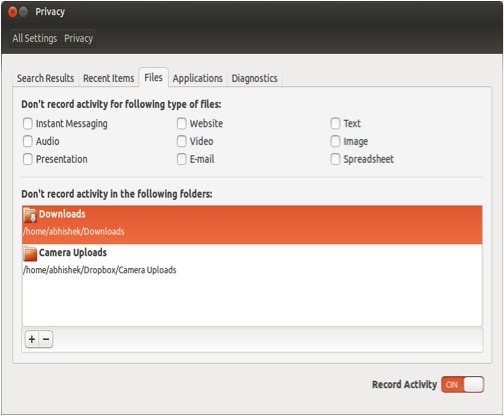 Enable or Disable Online Search Results Ubuntu 12.10 announced the inclusion of Amazon affiliate results into the Dash search. While Ubuntu is financially benefiting from the endeavor, many users see this not only as a breach of privacy but also as an unnecessary feature. Moreover, Amazon search results make use of your Internet connection too further slowing down the results a bit. So, if you're one of those people annoyed by Amazon showing up in your Dash, here's how to fix that: Go to 'Privacy' settings again. From there click on the 'Search Results' tab (which is also the first tab). From there, you can turn off online search results by turning off the switch. Deleting Activities If you want to delete your Dash history (much like clearing browsing history), simply go to the 'Recent Items' tab. From there, you can choose whether to delete history from the past hour, past week, past day or from a specific time span (Advanced). Also, if you want to start over, simply choose the option that lets you clear all activities. This will erase all your Dash records thus giving you a brand new Dash experience. Written by: Abhishek, a regular TechSource contributor and a long-time FOSS advocate.  |
| You are subscribed to email updates from TechSource To stop receiving these emails, you may unsubscribe now. | Email delivery powered by Google |
| Google Inc., 20 West Kinzie, Chicago IL USA 60610 | |
Friday, December 7, 2012
TechSource: Top 5 Android Tablets of 2012
TechSource: Top 5 Android Tablets of 2012 |
| Posted: 07 Dec 2012 05:01 AM PST  1. Google Nexus 7 Next to the 4-incher smartphone from Google comes the 7-inch tablet. While most tablets run on a bigger display, which means bigger space and bigger energy consumption, this 7-incher does all the major jobs a tablet could cater but without any inconvenience. What's better in this tablet is that it has a price that competing OEMs would hate to pay attention to: $199. The Nexus 7's design looked like it has copied some styles from Acer's line of tablets or from the Kindle of Amazon, but the Nexus 7 is packed with its unique set of features. Unfortunately, the Nexus 7 doesn't have a rear camera but only the front-facing one at 1.2MP, but this should not matter if you'd really look at where the tablet's specifically designed. Adding to the list of specs we have the 1280x800p display with IPS, and is swift and responsive enough expected even on a 10-inch tablet. Moreover, the Nexus 7 runs on the new Android (version 4.2 'Jelly Bean'), as the standard, and is revved with a quad-core processor from NVIDIA.  While the Nexus 7 fell short with some goodies like the camera as said, an HDMI out, and some other essentials, the tablet feels more like it is designed to do entertainment more without compromise on quality. Being Google-friendly, users gain access to a vast ocean of apps, movies, games, and music from different stores but particularly from Google, and they're just truly enjoyable with the 9-hour battery. Incredibly, I don't really have to ask for anything else since everything runs sweet, safe, and sound as tested. Should you find the display size uncomfortable or lacking in substance, you can choose the Nexus 7's bigger brother, the Nexus 10. 2. Google Nexus 10 As said, the Nexus 10 is a 10-inch tablet computer packed with some real punch any competitors would laugh out of envy and obsession: a 2560x1600p display at 300ppi. Do you know what this means? With such a high resolution that is actually sharper than most smart TVs offered on appliance centers, pixels wouldn't be recognizable even under a magnifying glass. Adding to this pure beauty is the Nexus 10's superb body profile at 8.9mm thin; it is also incredibly light at 603 grams. Empowering the same Google enhancements plus Android's Jelly Bean offer is its dual-core ARM Cortex A15 processor that is specifically designed to boost Wi-Fi connectivity. Adding to this, there's also an above-average RAM at 2GB, NFC and BT capability, a very jaw-dropping 9000mAh battery, but a camera of just 5MP.  Like its smaller kin, the Nexus 10 promises the same Google convenience whether it be synchronizing data, cloud file handling, apps, books, games, movies, and much more. The only problem is that, there's variably no such long list of apps and games ready-made for a display at such resolution. Lastly, its price is typically so far from its smaller version, at $399 (vs. $199). 3. ASUS Transformer Pad Infinity 700 While being rumored as the best tablet for this century, I find Asus' Transformer Pad Infinity 700 to be too luxurious for a tablet. This is being confirmed with the device's price of up to $600, not to mention yet some exclusive accessories you'd love to bear with when having this one. The ASUS Transformer Pad Infinity 700 should be the most brilliantly designed tablet I've ever seen, with a very thin body, a sexy-looking metal finish, a complementary keyboard docking station, and of course, the very own 1080p display with IPS technology for all-angle viewing. The Infinity 700 is, yes, so sophisticated and promising at first glance of the device, but having to bring the keyboard dock along adds a sheet of worry to your carrying bag.  The ASUS Transformer Pad Infinity 700 is not short also with handsome specs. Included in the list are: a quad-core NVIDIA Tegra 3 processor clocked at 1.6GHz, 1GB of RAM, internal flash memory of 64GB expandable via a SD card, 8MP camera, but a relatively obsolete Android 'Ice Cream Sandwich' OS. I believe Asus is promising an OTA (over-the-air) update/upgrade to the latest Jelly Bean version, but we'd hoped that this should be a standard to make the price worth it even after almost a year of being on the market. Lastly, the docking station also adds some goodies to complement the tablet like adding some ports and extra input convenience. The ASUS Transformer Pad Infinity 700 is something really worth noting for especially because of its incredible display and superb gaming performance, but it lacks some modern features like better connectivity and cloud features as that of Google. Ultimately, its price will really pull its audience back to what we have in this list, the Nexus tablets from Google. 4. Samsung Galaxy Note 10.1 A typical big-screener tablet from Samsung, the Galaxy Note 10.1 is but one of those rare tablets you'd see with a mini-SIM slot for 3G connectivity. Being cellular, the tablet gets a bit more complicated, considering how feature-packed this slate is from the inside. Priced relatively high at $500, this tablet has everything it is expected about. A non-sweaty peak for the tablet's specs, the Samsung Galaxy Note 10.1 has a good set of performance tools like a quad-core processor and 2GB of RAM. Storage can be expandable aside from its internal hub at 64GB max. Moreover, there's also a promise that this slate will receive an upgrade to Android Jelly Bean after its standard Ice Cream Sandwich OS. There's a 5-MP camera, if you'd ask, and ultimately, there's a good room for the S-Pen.  The Samsung Galaxy Note 10.1 looks like it is particularly designed for the pen it bears along. Aside from multi-tasking like having a split display for two different tasks done at the same time, the slate also comes with more business-friendly apps while taking advantage of the said pen. As for me, I still find the tablet to be lacking some better apps to fully enjoy this pen, but it is nevertheless something one would love. Having a slot for the SIM makes this slate 'over-featured,' though some would argue that it is a good complement. As for me, the Samsung Galaxy Note 10.1 has a price higher than what we expect beyond the S-Pen it boasts. 5. Amazon Kindle Fire HD (7-incher) Amazon's entry to the tablet world featured something else more than just plain e-book reading. With the Kindle Fire HD, Amazon did a good job in delivering rich contents within its price starting at $199. Being cheap, we don't really expect something bigger like those from the Apple, but instead, we are happy that we gain access to the very vast commercial library of Amazon. With this said, especially if you are a 'prime' member of the said e-store, you get access to movies, live TV shows, apps, and especially books; I hardly recommend games for this one, so if you're a gamer, turn your back around.  I do not actually love how Amazon made too much tweaks on Android's proprietary interface, so it's plainly hard to tell what version of Android this device runs on for 'formality' sake. Nevertheless, the new interface is not really disturbing at all, though all you see is a long list of products. If you are into web-browsing—and even games, as said, the Kindle Fire HD is not something you'd find very reliable. The Kindle Fire HD, however, boasts of its relatively powerful display and its dual-band, dual antenna technology that promises 40% faster Wi-Fi speed. Other than these, it's no better for you to know that this slate only has a 1.2GHz dual-core processor. Conclusion: Packing things up, I really find the Nexus 7 of Google as the 'tablet for all times,' at least for now. It has all the necessary features for today, and possesses some futuristic features like Google's very own cloud features. Thanks to its very low price, I'd know for sure that with all its great specs, everything is up to par without any usual worries. Written by: Wilson Sy, TechSource's certified gadgets correspondent.  |
| You are subscribed to email updates from TechSource To stop receiving these emails, you may unsubscribe now. | Email delivery powered by Google |
| Google Inc., 20 West Kinzie, Chicago IL USA 60610 | |
Thursday, December 6, 2012
[HowtoForge] Newsletter 12/06/2012
HowtoForge Newsletter 12/06/2012
================================
*** Version 1.3 of the ISPConfig 3 Manual ***
=============================================
The next update of the ISPConfig 3 Manual is available in PDF format (version 1.3 for ISPConfig >= 3.0.4; Date: 10/25/2011).
Version 1.3 for ISPConfig >= 3.0.4 (Date: 10/25/2011)
Author: Falko Timme
333 pages
The manual can be downloaded from these two links:
http://www.ispconfig.org/ispconfig-3/ispconfig-3-manual/
http://www.howtoforge.com/download-the-ispconfig-3-manual
*********************************************
*********************************************
ISPConfig Monitor App for Android Phones
========================================
With the ISPConfig Monitor App, you can check your server status and find out if all services are running as expected. You can check TCP and UDP ports and ping your servers. In addition to that you can use this app to request details from servers that have ISPConfig installed; these details include everything you know from the Monitor module in the ISPConfig Control Panel (e.g. services, mail and system logs, mail queue, CPU and memory info, disk usage, quota, OS details, RKHunter log, etc.).
Download/Usage
==============
For download and usage instructions, please visit http://www.ispconfig.org/ispconfig-3/ispconfig-monitor-app-for-android/ .
*********************************************
********************************************
*** HowtoForge Now Has Its own Facebook Page ***
================================================
We at HowtoForge are proud to announce that our new Facebook page is now available under http://www.facebook.com/howtoforge. As most of you probably have a Facebook account, we want to use this additional channel to post updates and get feedback from you. Therefore we would like you to "Like" our page, share it with your friends, post comments, etc.
http://www.facebook.com/howtoforge
********************************************************************
New HOWTOs:
===========
* The Perfect Desktop - Linux Mint 14 (Nadia)
* The Perfect Desktop - Ubuntu Studio 12.10
* Running concrete5 On Nginx (LEMP) On Debian Squeeze/Ubuntu 12.10
* Encrypt Your Data With EncFS (Ubuntu 12.10)
* Virtual Hosting With PureFTPd And MySQL (Incl. Quota And Bandwidth Management) On Ubuntu 12.10
* How To Integrate ClamAV Into PureFTPd For Virus Scanning On Ubuntu 12.10
++++++++++++++++++++++++++++++++++++++++++++++++++++++++++++
The Perfect Desktop - Linux Mint 14 (Nadia)
===========================================
This tutorial shows how you can set up a Linux Mint 14 (Nadia) desktop that is a full-fledged replacement for a Windows desktop, i.e. that has all the software that people need to do the things they do on their Windows desktops. The advantages are clear: you get a secure system without DRM restrictions that works even on old hardware, and the best thing is: all software comes free of charge.
You can find the document here:
-------------------------------
http://www.howtoforge.com/the-perfect-desktop-linux-mint-14-nadia
The Perfect Desktop - Ubuntu Studio 12.10
=========================================
This tutorial shows how you can set up an Ubuntu Studio 12.10 desktop that is a full-fledged replacement for a Windows desktop, i.e. that has all the software that people need to do the things they do on their Windows desktops. The advantages are clear: you get a secure system without DRM restrictions that works even on old hardware, and the best thing is: all software comes free of charge. Please note that Ubuntu Studio 12.10 uses XFCE as the default desktop environment.
You can find the document here:
-------------------------------
http://www.howtoforge.com/the-perfect-desktop-ubuntu-studio-12.10
Running concrete5 On Nginx (LEMP) On Debian Squeeze/Ubuntu 12.10
================================================================
This tutorial shows how you can install and run a concrete5 web site on a Debian Squeeze or Ubuntu 12.10 system that has nginx installed instead of Apache (LEMP = Linux + nginx (pronounced "engine x") + MySQL + PHP). nginx is a HTTP server that uses much less resources than Apache and delivers pages a lot of faster, especially static files. concrete5 is a free and open-source content management system (CMS).
You can find the document here:
-------------------------------
http://www.howtoforge.com/running-concrete5-on-nginx-lemp-on-debian-squeeze-ubuntu-12.10
Encrypt Your Data With EncFS (Ubuntu 12.10)
===========================================
EncFS provides an encrypted filesystem in user-space. It runs without any special permissions and uses the FUSE library and Linux kernel module to provide the filesystem interface. It is a pass-through filesystem, not an encrypted block device, which means it is created on top of an existing filesystem. This tutorial shows how you can use EncFS on Ubuntu 12.10 to encrypt your data.
You can find the document here:
-------------------------------
http://www.howtoforge.com/encrypt-your-data-with-encfs-ubuntu-12.10
Virtual Hosting With PureFTPd And MySQL (Incl. Quota And Bandwidth Management) On Ubuntu 12.10
==============================================================================================
This document describes how to install a PureFTPd server that uses virtual users from a MySQL database instead of real system users. This is much more performant and allows to have thousands of ftp users on a single machine. In addition to that I will show the use of quota and upload/download bandwidth limits with this setup. Passwords will be stored encrypted as MD5 strings in the database. This tutorial is based on Ubuntu 12.10.
You can find the document here:
-------------------------------
http://www.howtoforge.com/virtual-hosting-with-pureftpd-and-mysql-incl-quota-and-bandwidth-management-on-ubuntu-12.10
How To Integrate ClamAV Into PureFTPd For Virus Scanning On Ubuntu 12.10
========================================================================
This tutorial explains how you can integrate ClamAV into PureFTPd for virus scanning on an Ubuntu 12.10 system. In the end, whenever a file gets uploaded through PureFTPd, ClamAV will check the file and delete it if it is malware.
You can find the document here:
-------------------------------
http://www.howtoforge.com/how-to-integrate-clamav-into-pureftpd-for-virus-scanning-on-ubuntu-12.10
++++++++++++++++++++++++++++++++++++++++++++++++++++++++++++++
++++++++++++++++++++++++++++++++++++++++++++++++++++++++++++++
You can now support HowtoForge by becoming a subscriber:
HowtoForge Subscription
=======================
*** New! We now accept RBS WorldPay payments in addition to PayPal. ***
For a monthly fee of 5 EUR or 25 EUR for half a year, you can become a HowtoForge supporter and help us cover our costs (servers, bandwidth, etc.) and support ISPConfig development. In return, you receive the following benefits:
1. Download the ISPConfig 3 Manual (from http://www.howtoforge.com/download-the-ispconfig-3-manual).
2. Access the whole HowtoForge web site without any ads.
3. Download the results of our tutorials as VMware images (where available) (a list of downloadable VMware images is available here: http://www.howtoforge.com/list-of-downloadable-vmware-images).
4. Download our tutorials as PDF files.
5. View our tutorials as printer-friendly pages.
6. You will be marked as a "HowtoForge Supporter" in your forum posts.
7. Plus, you support the ISPConfig development.
If you have the free VMware Server or Player installed, you can import our VMware images and start playing around with the results of our tutorials immediately. It's a great way to track down problems with your own setup or simply to save time. ;-)
More details can be found on http://www.howtoforge.com/subscription.
++++++++++++++++++++++++++++++++++++++++++++++++++++++++++++++
++++++++++++++++++++++++++++++++++++++++++++++++++++++++++++++
Best Regards,
Your HowtoForge Team
Email: info@howtoforge.com
URL: http://www.howtoforge.com
To unsubscribe or update your records, click here: http://newsletter.howtoforge.com/howtoforge/user/update.php?email=matrixunix.ubuntu@blogger.com&code=d8531959c7da2982ec3a7f8f82a13961
Wednesday, December 5, 2012
TechSource: How To Get Access to Hulu, Pandora and other US-only sites on Linux
TechSource: How To Get Access to Hulu, Pandora and other US-only sites on Linux |
| How To Get Access to Hulu, Pandora and other US-only sites on Linux Posted: 04 Dec 2012 10:35 PM PST  That said, none of these aforementioned sites have managed to mimic the TV-viewing and the radio-listening experience as much as Hulu, Pandora, and Last.fm have. While Hulu gives you access to the latest shows, Pandora acts like your personalized radio station. The same with Last.fm, as it lets you listen to your customized Internet radio stations. Having said that, these services don't really work outside the United States. For those who are not in America, these services are either completely closed or are available with limited functionality, which, many people think is quite a bummer. Thankfully, though, there is a neat little workaround for the problem. All you need is a Linux desktop, a computer, or, for that matter, any other computer with an Internet connection. For this guide, we'll stick to the Linux configuration. The service that lets you access those restricted sites outside the U.S. is called Tunlr. The service is, as to speak, 'installed' when you change your DNS address to Tunlr's servers. A small amount of traffic then gets routed through their servers thus letting you access Hulu, Pandora, ABC, and many other US-only sites without any proxies or cheeky software. To get started with Tunlr, simply go to the network indicator and select 'Edit Connections' from the drop-down menu. From there, select your connection be it wireless or wired and click on the 'IPV4' settings tab as shown in the screenshot. Change the Method to Automatic (DHCP) addresses only. There, add the following lines in the DNS servers field: 184.82.222.5, 199.167.30.144 Then, click on 'Save'.  Once done, disconnect and reconnect to your network and start watching your favorite sites in their full glory. Written by: Abhishek, a regular TechSource contributor and a long-time FOSS advocate.  |
| You are subscribed to email updates from TechSource To stop receiving these emails, you may unsubscribe now. | Email delivery powered by Google |
| Google Inc., 20 West Kinzie, Chicago IL USA 60610 | |

 Posts
Posts

